How to Change Mouse Double-Click Speed in Windows 11

This guide explains how to change the mouse double-click speed in Windows 11. Customizing your mouse settings makes your computer easier to use. You can also adjust your primary mouse button, enable pointer precision, or change your mouse pointer size to suit your needs.
By default, Windows opens files and folders when you double-click. The double-click speed setting controls how fast you must click for the computer to recognize the action as a double-click rather than two separate clicks.
Why do this?
If you have trouble clicking fast, or if your computer thinks you are double-clicking when you only meant to click once, you should adjust these settings to match your natural clicking speed.
What happens when done?
Your computer will be easier to navigate because it will respond to your clicks exactly how you want it to.
How to change the mouse double-click speed
You can change these settings through the Windows Settings app. Note that some system-level changes may require admin privileges if you are on a restricted work or school computer.
- Open the Settings app by pressing the Windows key + I on your keyboard, or by clicking Start > Settings.

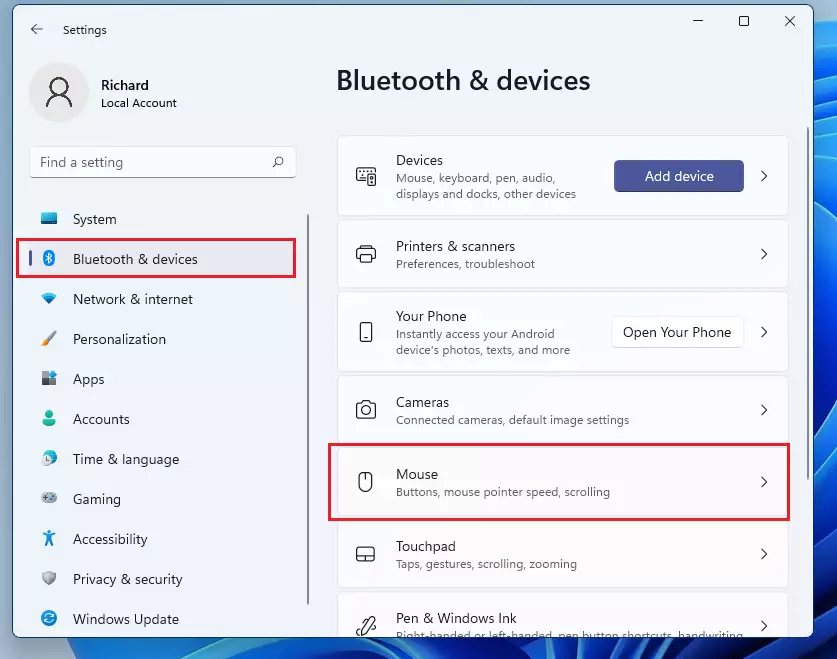
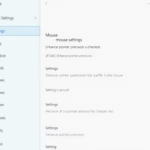
- In the Settings menu, click on Bluetooth & devices on the left side.
- Select Mouse on the right side of the screen.
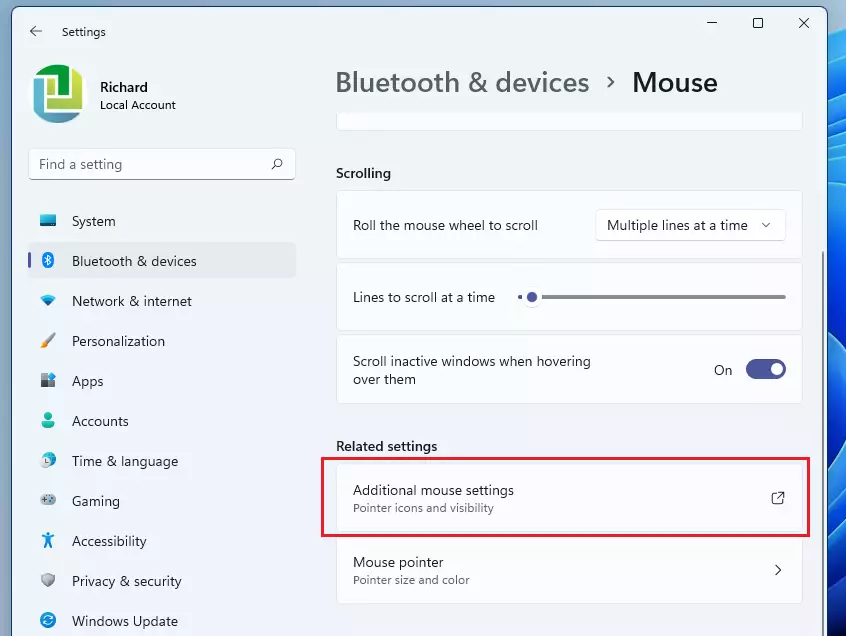
- Scroll down to the bottom and click on Additional mouse settings.
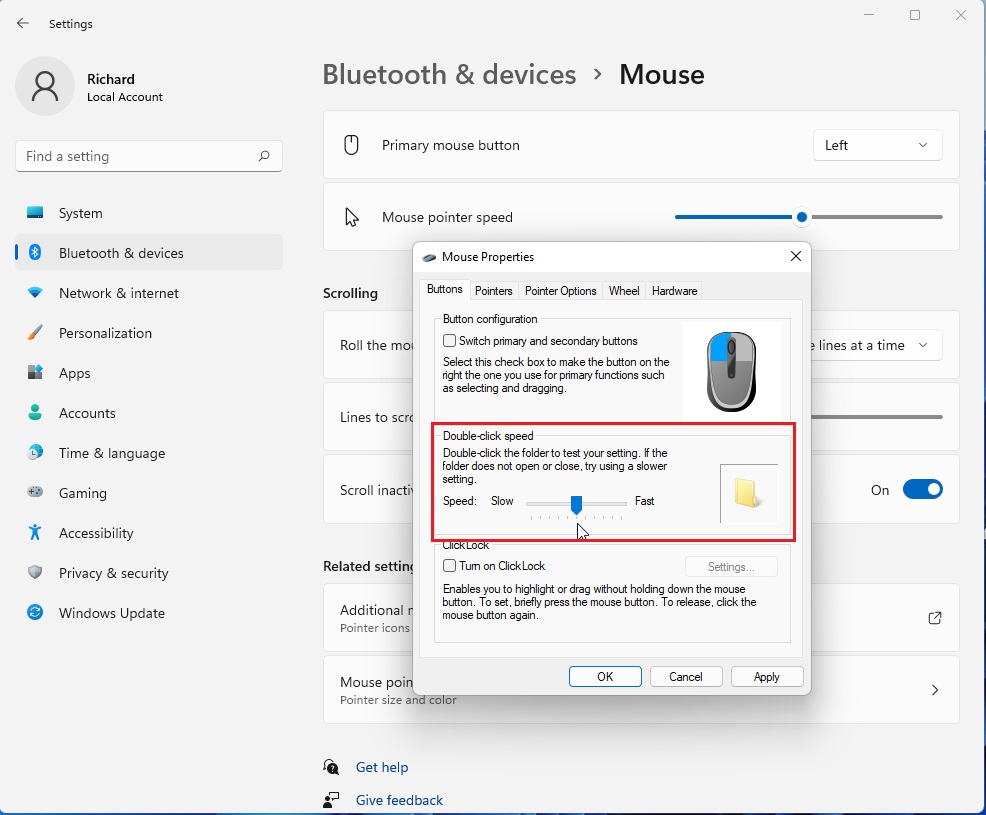
- A small window called Mouse Properties will pop up. Under the Buttons tab, look for Double-click speed.
- Move the slider to the left for a slower speed or to the right for a faster speed.
- Use the folder icon on the right to test your new speed. If it does not open or close, adjust the slider again until it works for you.
- Click OK to save your changes.
Troubleshooting Ghost Double-Clicks
Sometimes your mouse might double-click when you only click once. This is often a hardware issue rather than a software setting. If adjusting the double-click speed does not help, your mouse switch may be wearing out. Try plugging your mouse into a different USB port or a different computer to see if the problem persists. You can also check for updated Windows mouse drivers in the Device Manager.
Advanced Customization
For power users, you can manage mouse behavior via the registry. You can find these settings at HKEY_CURRENT_USER\Control Panel\Mouse. Be careful when editing the registry, as incorrect changes can cause system issues. Always back up your registry before making modifications.
Summary
Changing your double-click speed makes your computer easier to use and prevents frustration. By navigating to Bluetooth & devices > Mouse > Additional mouse settings, you can quickly customize how your mouse responds to your clicks. If you experience persistent issues, check your hardware or update your drivers. For more information, visit the Microsoft Support website.
Why does my mouse double-click when I only click once?
This is usually caused by a failing mechanical switch inside your mouse. First, try increasing the double-click speed in your settings to see if it masks the issue. If the problem continues across different computers, the hardware is likely faulty and needs to be replaced.
Does changing the double-click speed affect gaming performance?
No, the double-click speed setting only affects how Windows interprets clicks for opening files and folders. It does not change your mouse sensitivity, input lag, or response time in games. Gaming performance is determined by your mouse DPI and polling rate settings.
How do I reset mouse settings to default?
To reset your mouse settings, simply move the double-click speed slider back to the middle position. For more advanced resets, you can uninstall your mouse driver in Device Manager and restart your computer. Windows will automatically reinstall the default drivers upon rebooting.
Was this guide helpful?


Leave a Reply Cancel reply